Logging Architecture & Log Management
Starting with Coneshare v1.11.0, the logging subsystem has transitioned to a 12-Factor Container-Native Architecture (Factor XI: Logs as Event Streams).
This guide explains the architectural changes, outlines critical operational details regarding log retention during version upgrades, and provides recommendations for lightweight and enterprise log aggregators.
1. What Changed in v1.11.0
In previous versions, Coneshare containers mounted a shared host volume (../logs) and wrote logs directly to host files (such as coneshare.log). As deployments grew, this design caused several operational bottlenecks:
- Multi-Process & Multi-Container Contention: Multiple independent containers (
web,celery,video_worker) concurrently wrote to the same physical file, causing file rotation race conditions and crashes (FileNotFoundError). - Log Rotation Inode Traps: Container processes following logs via
tail -fremained attached to rotated old file descriptors (coneshare.log.1), permanently freezing output todocker logs. - Disk Space Saturation: In-container log files could grow unchecked unless an external host logrotate script was maintained.
The Container-Native 12-Factor Model
In v1.11.0 and newer:
- Zero Host File Mounts: Containers no longer mount a shared
../logsdirectory. - Direct Event Streaming: All application components (Django REST Framework, Gunicorn, Nginx, Go Core file service, Celery workers) write unbuffered event streams directly to
stdoutandstderr. - Daemon-Managed Rotation: The host Docker daemon manages log streams and log rotation (
max-size: 50m,max-file: 5, capping total log storage at 250MB per container). - Isolated Service Streams: Background document conversion (
coneshare-celery) and video transcoding (coneshare-video) logs are strictly partitioned into their respective containers, keeping the main HTTP web log (coneshare-web) clean and readable.
2. Critical Warning: Log Retention During Upgrades
Logs Are Cleared on Reinstall or Version Upgrades (./install.sh)
When upgrading Coneshare or running ./install.sh, the installer invokes docker compose down to cleanly stop old containers and apply migrations.
In Docker's default json-file logging driver, log files are bound to the container's lifecycle. When Docker removes a container (docker rm), it automatically deletes the associated /var/lib/docker/containers/<container-id>/ directory and its logs.
- Routine service restarts (
./dc restartordocker compose restart) preserve all logs. - Version upgrades or reinstallations (
./install.shordocker compose down) purge the previous container's logs.
If your team requires historical log persistence across upgrades or compliance audits, you must either:
- Deploy a log aggregator (recommended, see below), or
- Manually archive logs before running
./install.sh.
3. Recommended Log Aggregators & Viewers
Because container event streams write to standard output, you can plug in any standard container log aggregation tool.
Enterprise Solutions (ELK / Loki / Cloud)
For multi-host or enterprise environments requiring long-term indexed search, cold storage, and complex alerting rules:
- ELK Stack (Elasticsearch, Logstash/Filebeat, Kibana): The traditional enterprise standard. Collect container logs via Filebeat reading
/var/lib/docker/containers/*/*.logor the Docker logging driver. - Grafana Loki + Promtail: A cost-effective, Kubernetes-friendly alternative that only indexes metadata labels, significantly reducing storage and CPU overhead compared to Elasticsearch.
- Cloud Collectors: Datadog Agent, AWS CloudWatch Logs, or Google Cloud Logging daemon.
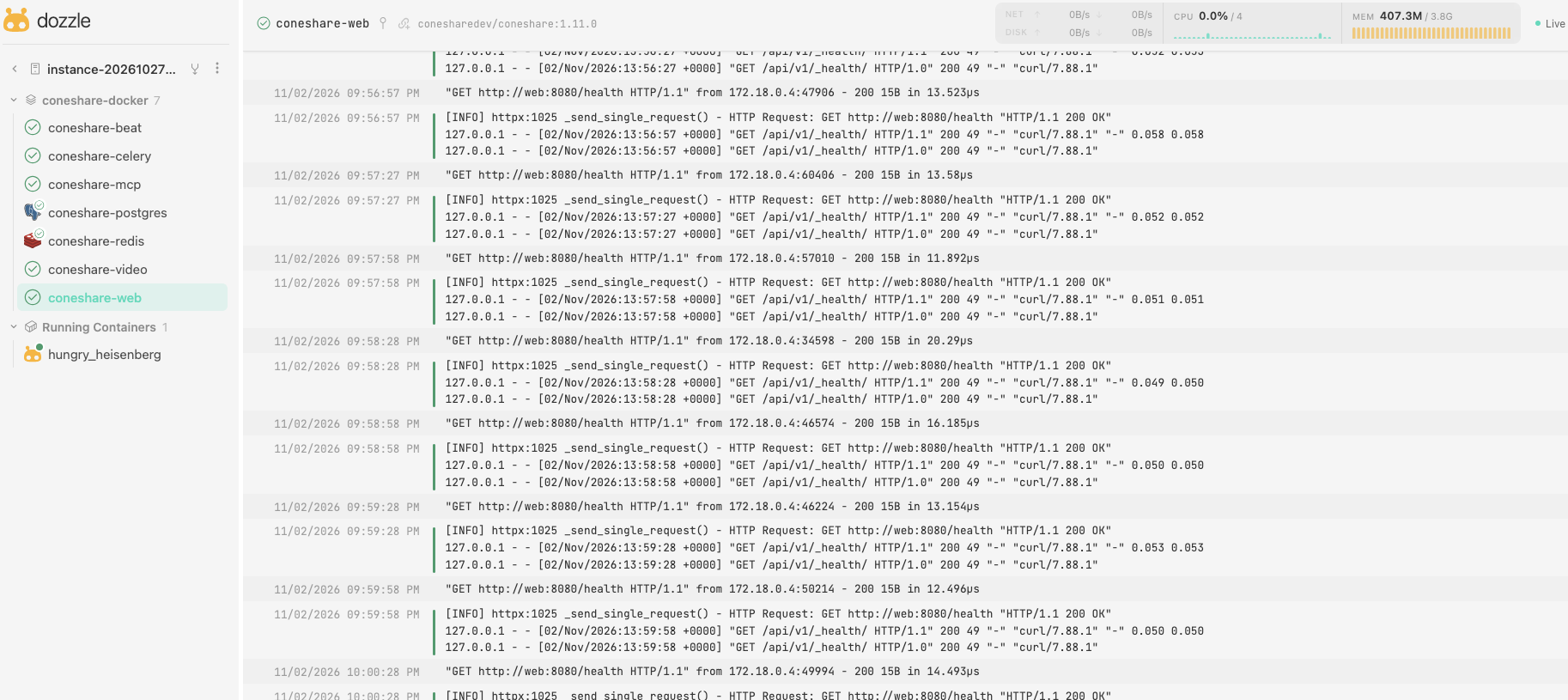
Lightweight & Open-Source Recommendation: Dozzle
For single-server, self-hosted, or resource-constrained deployments, we strongly recommend Dozzle.
Dozzle is an open-source, ultra-lightweight (~15MB RAM), zero-configuration web dashboard built specifically for Docker log viewing and aggregation.
Why Dozzle?
- Zero Database Required: Runs as a single lightweight Go container with no external database, Elasticsearch cluster, or Redis dependencies.
- Real-Time Streaming: Live log streaming for all Coneshare services (
coneshare-web,coneshare-celery,coneshare-video,coneshare-postgres,coneshare-redis). - Split-Screen Viewing: Inspect live HTTP requests in
coneshare-webside-by-side with document processing jobs inconeshare-celery. - Instant Search & Regex Filtering: Search logs in real time by Document ULID, share link slug, HTTP status code (e.g.
500), or error traces. - Log Downloads: One-click download of full container logs directly from the browser for offline debugging.
Setting Up Dozzle with Coneshare
Option A: Quick Start (Single Command)
For an immediate setup without editing compose files, start Dozzle with a single docker run command:
docker run -d \
  --name coneshare-dozzle \
  -v /var/run/docker.sock:/var/run/docker.sock \
  -v dozzle_data:/data \
  -p 8800:8080 \
  amir20/dozzle:latest
Option B: Docker Compose (Persistent Service)
You can deploy Dozzle alongside Coneshare by adding a dozzle service to your docker-compose.yaml (or in a docker-compose.override.yaml file):
services:
  dozzle:
    image: amir20/dozzle:latest
    container_name: coneshare-dozzle
    restart: unless-stopped
    volumes:
      # Mount the Docker daemon socket as read-only
      - /var/run/docker.sock:/var/run/docker.sock:ro
      - dozzle_data:/data
    ports:
      # Bind to localhost (recommended) or your desired internal port
      - "127.0.0.1:8800:8080"
    environment:
      DOZZLE_LEVEL: info
      DOZZLE_NO_ANALYTICS: "true"
      # Optional: Restrict Dozzle to display only Coneshare containers
      DOZZLE_FILTER: "name=coneshare-*"

volumes:
  dozzle_data:
After updating the compose configuration, start Dozzle:
Open http://<your-server-ip>:8800 (or configure an Nginx reverse proxy block with basic authentication) to access your log viewer.
4. Alternative: Archiving Logs Prior to Upgrade
If you do not run a log aggregator and want to preserve current logs before running ./install.sh, run the following quick archive script from your coneshare-compose directory:
# Create an archive directory
mkdir -p ../logs/archive
TIMESTAMP=$(date +'%Y%m%d_%H%M%S')

# Export current container logs
for svc in web celery video_worker; do
  docker compose logs -t "$svc" > "../logs/archive/${svc}_${TIMESTAMP}.log" 2>/dev/null || true
done

echo "Logs archived to ../logs/archive/"
Once the archive is complete, you can safely proceed with ./install.sh.
5. CLI Log Inspection Cheat Sheet
If you prefer using the terminal, here are the primary commands for following and filtering container logs:
Follow Live Streams
# Follow web, API, and reverse proxy traffic:
docker logs -f coneshare-web

# Follow document & PDF conversion tasks:
docker logs -f coneshare-celery

# Follow video HLS transcoding:
docker logs -f coneshare-video
Filter by Time or Error Code
# View the last 15 minutes of celery task events with timestamps:
docker logs --since 15m -t coneshare-celery

# Filter for HTTP 4xx / 5xx error responses:
docker logs coneshare-web 2>&1 | grep -E '" [45][0-9]{2} '

# Search conversions for a specific document ULID:
docker logs coneshare-celery 2>&1 | grep "01K9..."