Quick Start
This guide provides everything you need to deploy your own instance of Coneshare. To simplify installation, we use Docker and Docker Compose, along with a Bash-based installation script that handles the setup process.
Once installed, Coneshare will be accessible on port 8999 by default.
Prerequisites
System Requirements
Coneshare must be installed on a Linux system, such as a recent version of Ubuntu, Debian, or CentOS.
The recommended minimum system resources are:
- 2 CPU Cores
- 4 GB RAM
- 20 GB of available disk space
Software Requirements
You will need Docker and Docker Compose installed on your system.
- Docker: Version
19.03.6or higher - Docker Compose: Version
2.13.0or higher
You can check your versions by running:
How do I install Docker Compose?
Modern versions of Docker include compose as a subcommand. If docker compose version works, you are all set.
If not, you will need to install it separately. You can find the latest version on the official Compose release page. The following commands will download a recent version and make it executable:
# Download the executable
sudo curl -L "https://github.com/docker/compose/releases/download/v2.29.1/docker-compose-$(uname -s)-$(uname -m)" -o /usr/local/bin/docker-compose

# Apply executable permissions
sudo chmod +x /usr/local/bin/docker-compose
docker-compose --version. What if my system resources are lower than recommended?
You can adjust the resource checks in the configuration. For details, refer to the Custom Configuration guide.
What if port 8999 is already in use?
You can change the port binding. For details, refer to the Custom Configuration guide.
Installation Steps
1. Download the Installation Scripts
First, choose a directory for your Coneshare installation (e.g., /opt/coneshare). Then, download the latest stable release from our GitHub repository.
# Create the directory if it doesn't exist
sudo mkdir -p /opt/coneshare
cd /opt/coneshare

# Get the latest release tag
VERSION=$(curl -Ls -o /dev/null -w %{url_effective} https://github.com/coneshare/coneshare-compose/releases/latest)
VERSION=${VERSION##*/}

# Clone the repository and check out the latest release
git clone https://github.com/coneshare/coneshare-compose.git
cd coneshare-compose
git checkout ${VERSION}
The coneshare-compose directory contains all the necessary files, including a helper script named dc that ensures Docker Compose is invoked correctly, regardless of whether your system uses docker compose or docker-compose.
2. Run the Installer
Execute the installation script. This script will check system requirements, pull the necessary Docker images, and generate the initial configuration files.
Once complete, you will see a success message prompting you to start the application.3. Configure Your Instance
After installation, a new app.env file is created in the root of your installation directory (/opt/coneshare). This file contains essential configuration variables.
The most important variable to set is SITE_DOMAIN, which tells Coneshare its public-facing URL. This is critical for generating correct share links and for other features to work properly.
Open /opt/coneshare/app.env and set the domain to your server's IP address or a configured domain name:
4. Start Coneshare
You can now start all the Coneshare services using the start.sh script.
To verify that all services are running correctly, use the dc ps command:
Up status. 5. Create a Superuser Account
Before you can log in, you must create an initial administrator account. Run the following command and follow the prompts to set a username, email, and password.
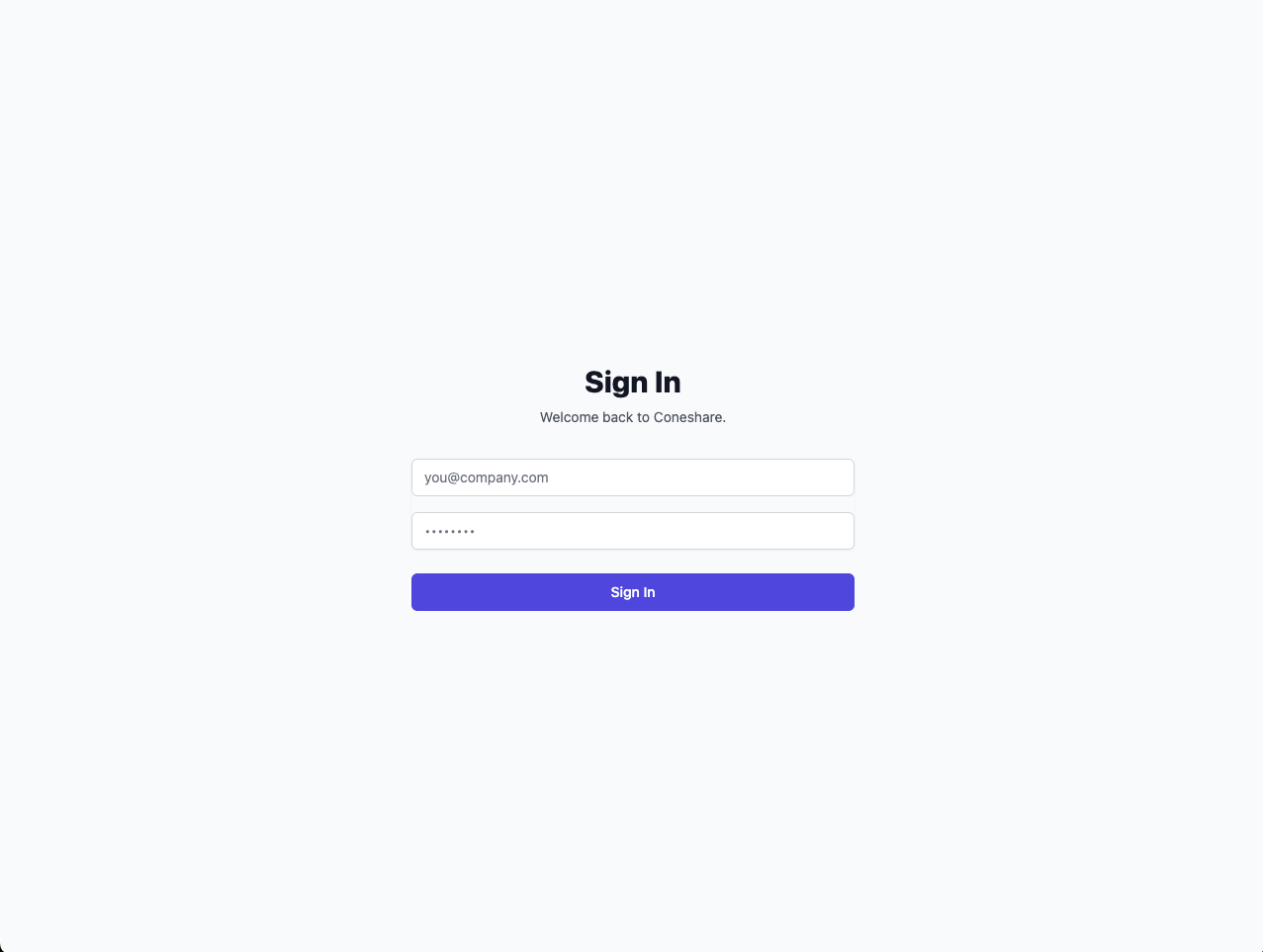
Once the account is created, you can log in to the web interface.Accessing Coneshare
Navigate to your SITE_DOMAIN in a web browser. If you are running locally, this will be http://127.0.0.1:8999.
Managing the Service
You can stop the services at any time with the stop.sh script.